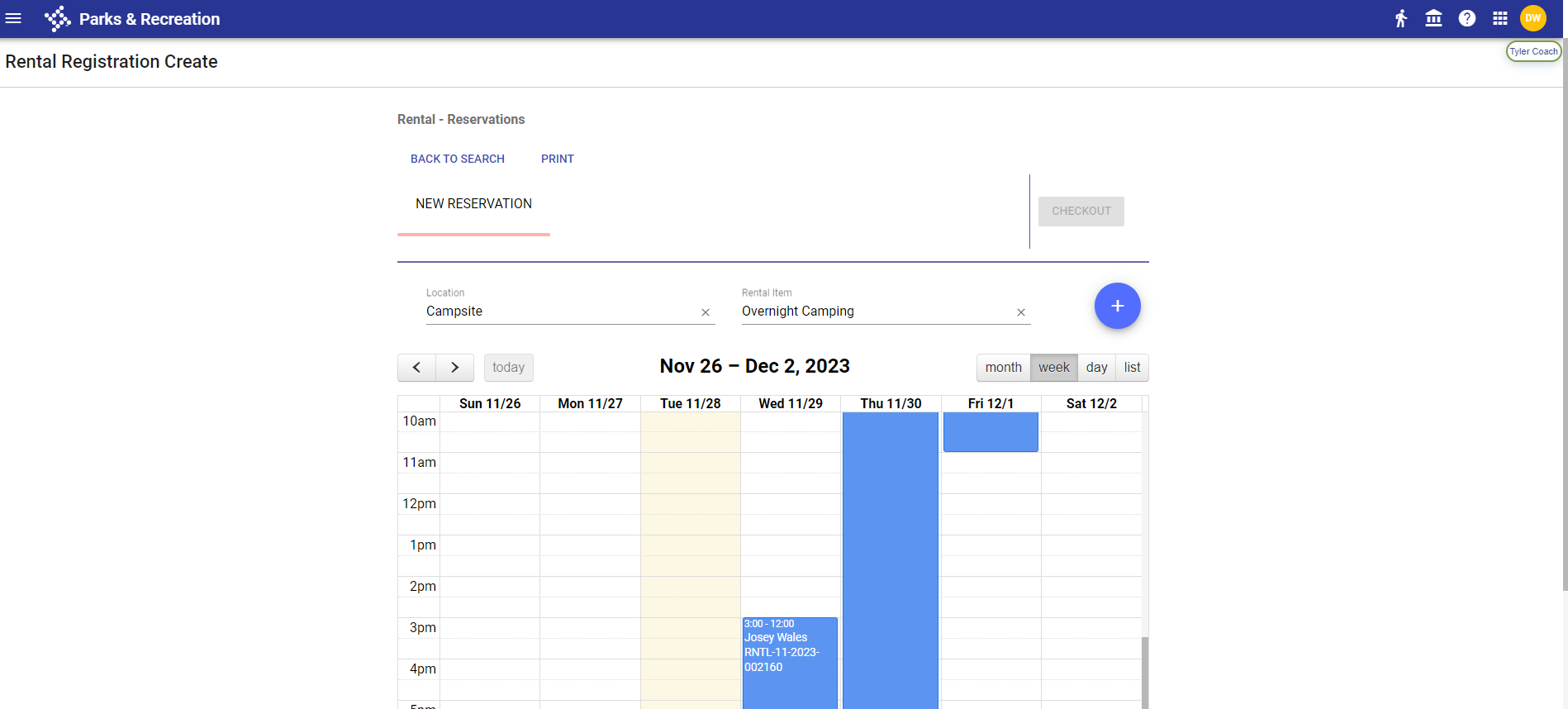
Overnight Rental Registration
As shown in the following step-by-step, the Parks & Rec application has been enhanced to support overnight rentals:
 Set Up Available Type
- Navigate to Administration > Parks & Rec Setup > Available Type.
- Click Create. The Available Type Details page displays.
-
Select the new Overnight option from the System Format Type dropdown, and enter a Name and Description:
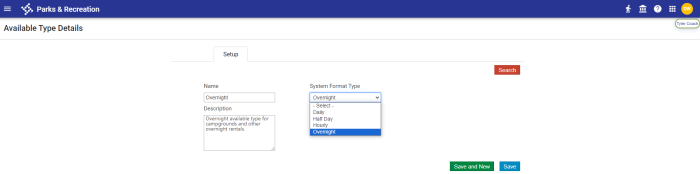
-
Click Save. The new type is added to the Available Type grid:


 Create Rental Item
- Navigate to Parks & Rec > Rental Item > Create.
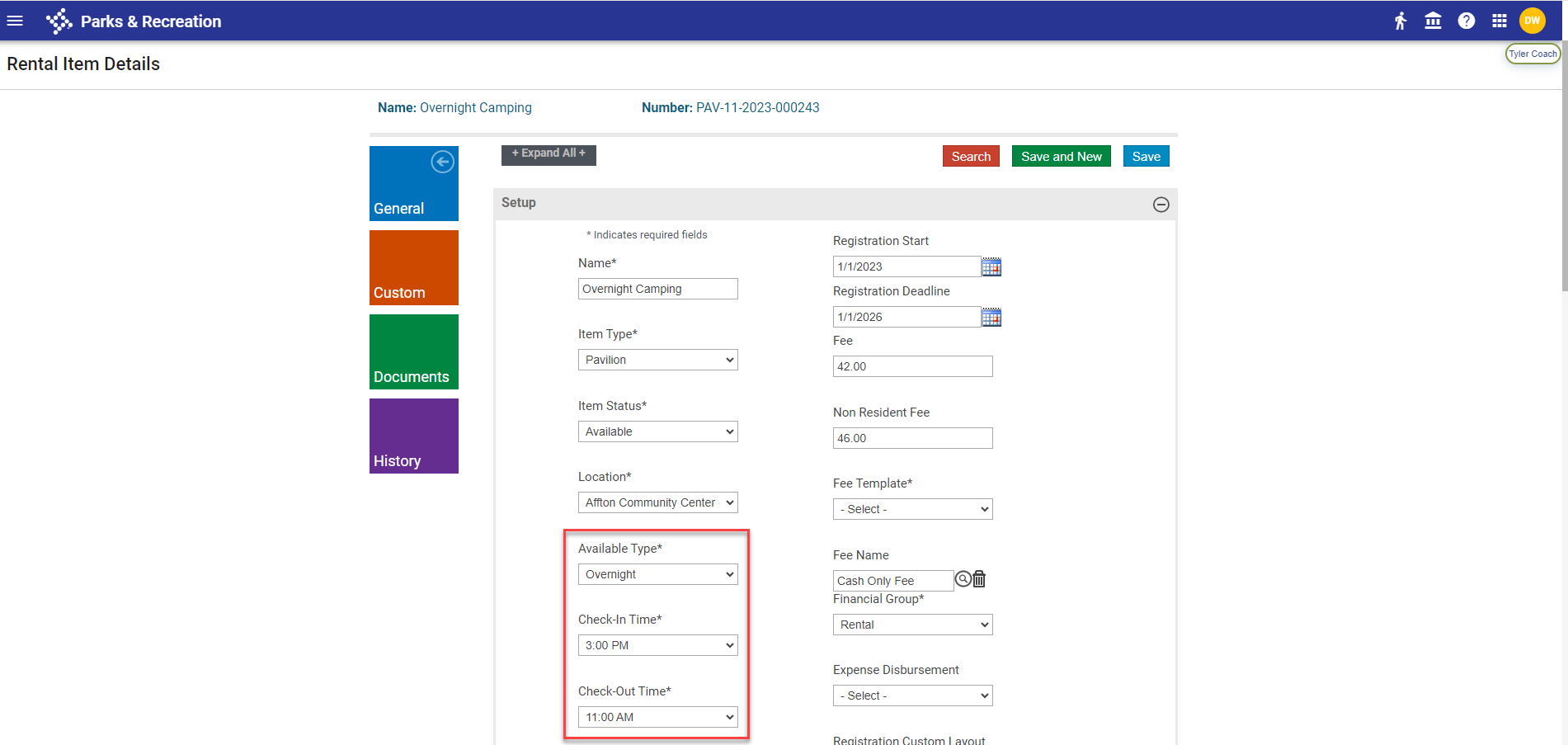
- From the Available Type dropdown, select the overnight option created in steps 1-4.
-
Check-In Time and Check-Out Time fields display below the Available Type field. From the dropdowns, select the check-in and check-out times:

- Make selections in the required fields that remain.
- Click Save.
- Repeat steps 5-9 for as many overnight rental items as necessary.
 Reserve Rental
- Navigate to Parks & Rec > Rental Registration > Create. The Rental Registration Create page displays.
-
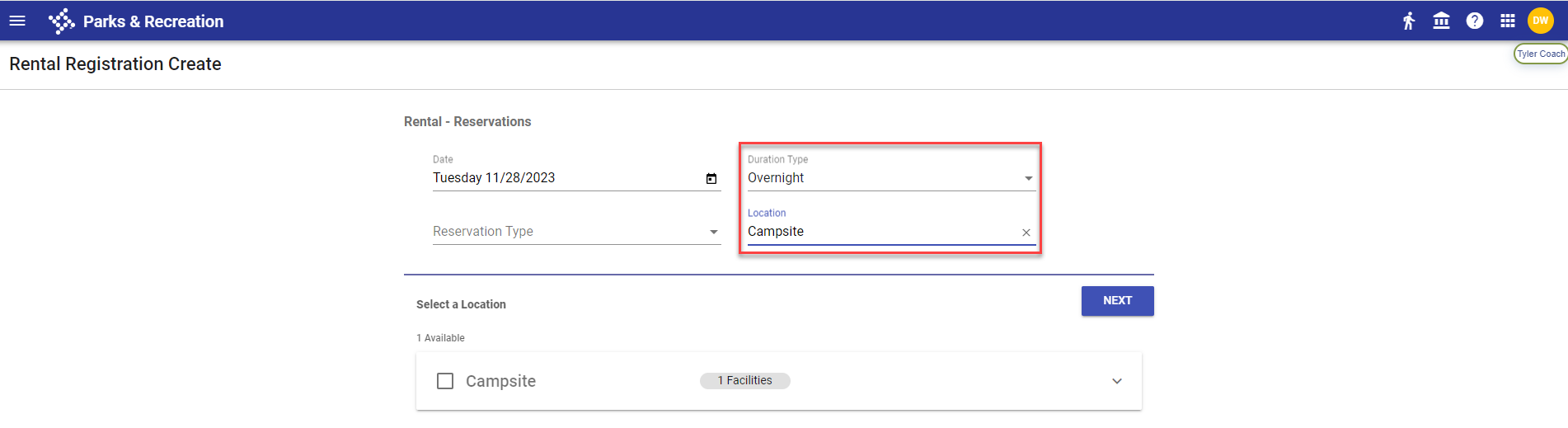
Select the overnight Duration Type and the Location:
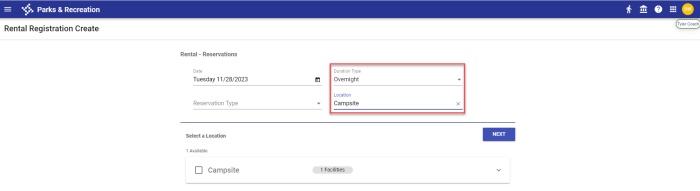
- Click NEXT. The registration calendar displays.
-
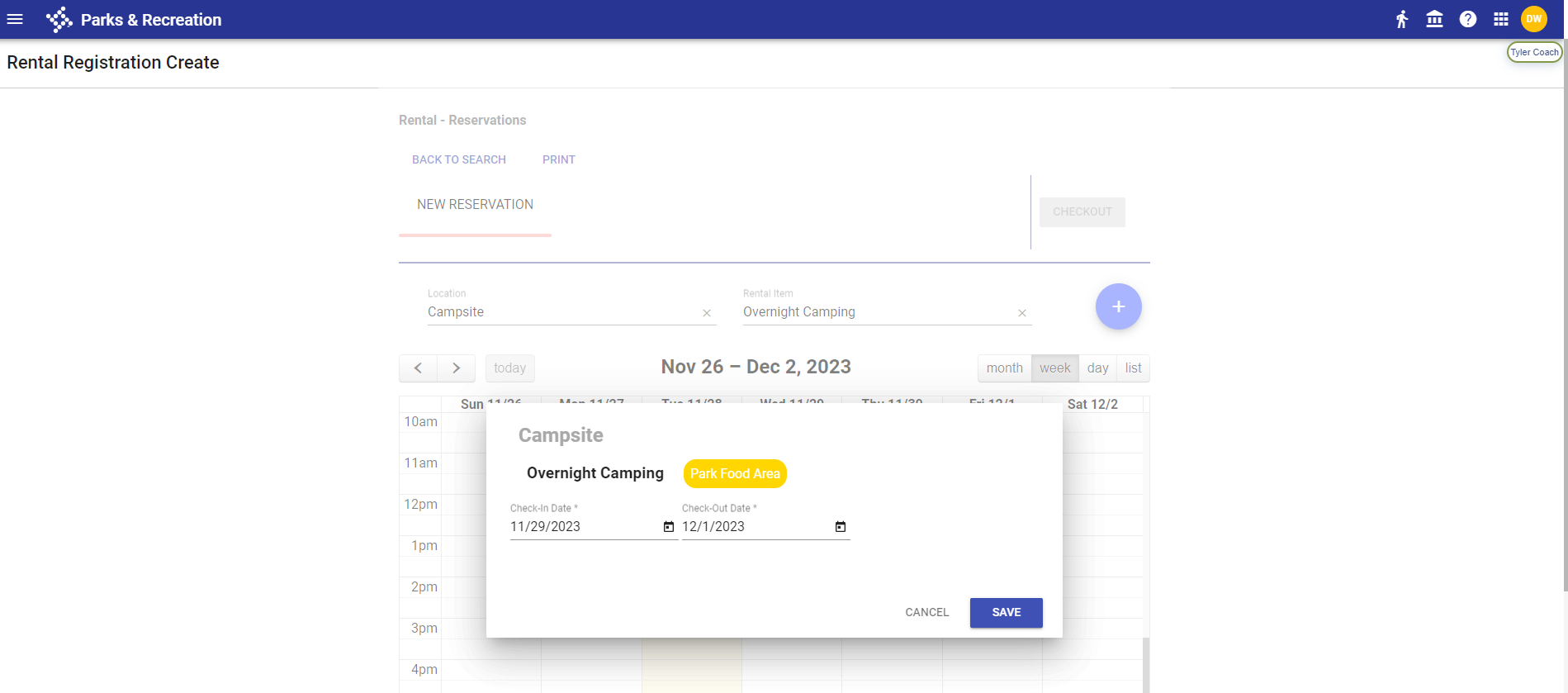
In the appropriate start date column, click the start time. A dialog displays, asking for a Check-In Date and Check-Out Date:
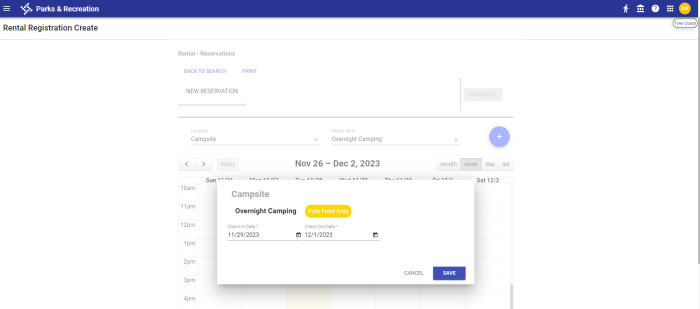
-
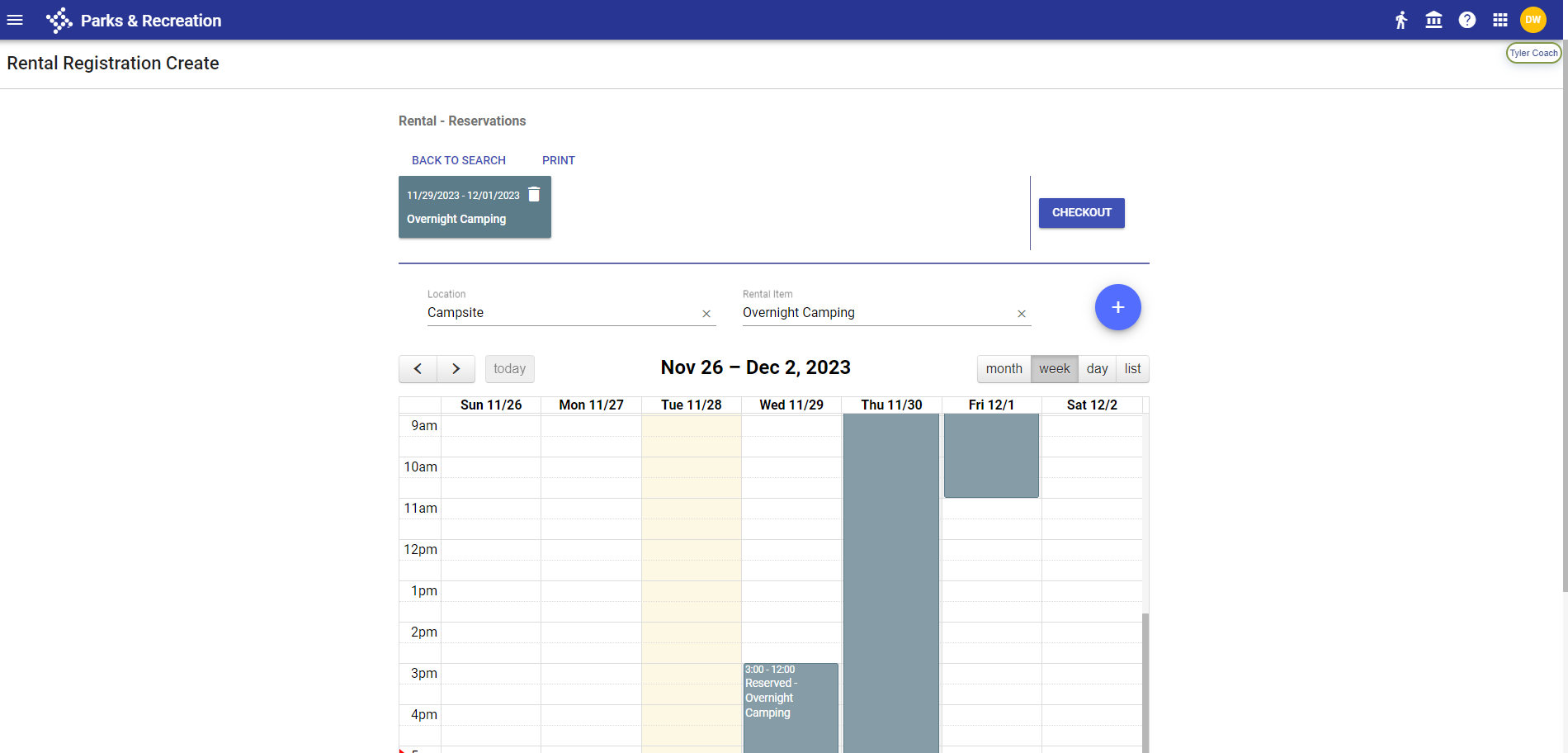
Click SAVE. The overnight duration is shaded on the calendar:
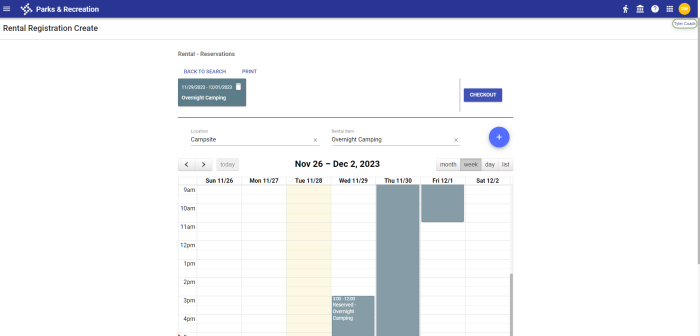
-
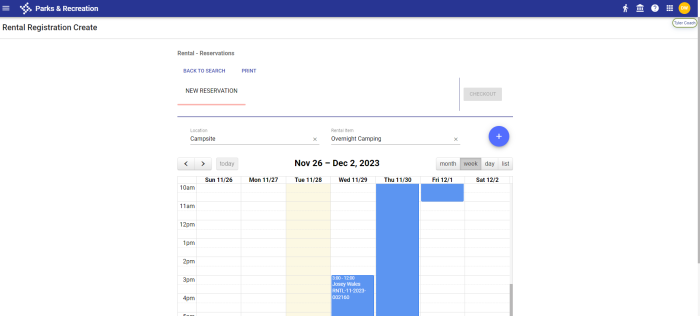
Click CHECKOUT to complete the checkout process. If the rental spans more than one night, the rental price is increased accordingly. Once the checkout process is complete, the calendar shading displays in blue: